
How to Sign In to Your YouTube Account and Take the Channel Over
October 19, 2026
BuyYouTube Help· Customer support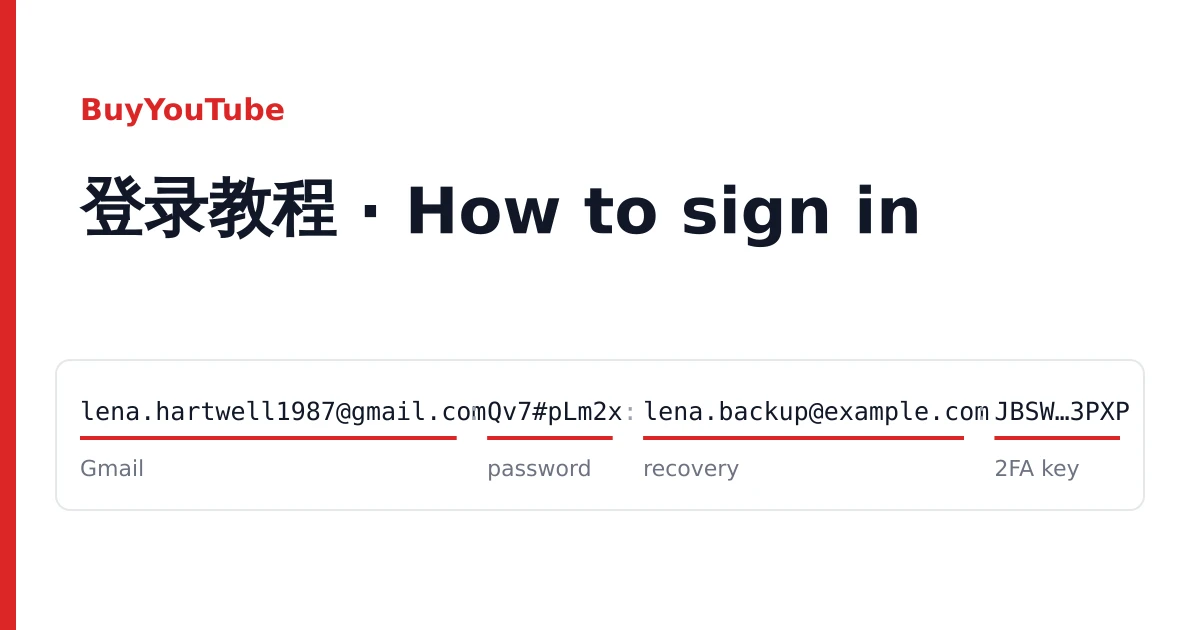
Every YouTube account you buy here is a Google account with a channel already created on it. It arrives as one line of text on your order page, where you can copy each line or download them all as a text file. Store that file the way you store passwords: whoever has a line can open the account.
Start by finding which of the four shapes below your line has. The rest of the guide follows the order of a first sign-in.
Match your line to a shape
The values below are made up. The separator can be a colon, a semicolon or a vertical bar; the order of the fields is what matters.
| Shape | Fields, in order | What it tells you |
|---|---|---|
| A | address:password:recovery email, sometimes :2FA key at the end | The aged listings. The recovery email is the answer to Google's "confirm your recovery email" prompt. |
| B | address|password|recovery email|recovery password|channel link|User-Agent|cookies link | Recovery mailbox included, plus cookies for a browser sign-in. The recovery password can be empty. |
| C | address:password:date:number | Manual registrations. The date is when the account was made; the number is the one used for the SMS check. |
| D | channel link:address:password:linked email | The channel link comes first, so you can open the channel before signing in. |
An example of shape A with a 2FA key:
lena.hartwell1987@gmail.com:Qv7#pLm2x:lena.backup@example.com:JBSWY3DPEHPK3PXPA 2FA key is a run of capital letters and digits with no spaces, usually 16 or 32 long. A channel link starts with https://www.youtube.com/. If two fields could be either one, ask in a ticket before you try them.
Open the channel first, if your line has a link
Shapes B and D carry the channel link. Paste it into a browser that is not signed in to anything. You should see the channel page with its name and picture, blank or with a few videos. If YouTube says the channel does not exist or has been terminated, stop and report that line with a screenshot: signing in will not bring it back.
Signing in with the password
- Go to accounts.google.com, or open the YouTube app and choose Sign in.
- Type the full Gmail address from the first field (the second field in shape D).
- Paste the password. Check that no colon, bar or space came with it; passwords are case-sensitive.
- Answer what Google asks next, as in the section below.
- Open youtube.com and tap the profile picture. The channel should be listed under the account.
When Google says "verify it's you"
A new device signing in to an older account often triggers a check. Which one you get depends on the account, and you may be offered a choice under "Try another way".
Confirm your recovery email
Type the recovery email from your line in full. This is the most common prompt on aged accounts, and the line has the answer.
Enter a code from Google Authenticator
Your listing came with a 2FA key. Paste the key into https://checkkit.net/en/online-2fa-code-generator and type the six digits it shows. A code lasts 30 seconds; if it is refused, wait for the next one.
Get a code at the recovery email
This works only when the mailbox was delivered with its password (shape B). Sign in to that mailbox in another tab and copy the code from Google's message.
Add a phone number
Google is asking for a number of your own because it does not recognise the device. Enter a number that can receive a text, type the code, and carry on. The number becomes a recovery option for you, which you want anyway.
Signing in with cookies (shape B)
The last field of a shape B line is a link to a cookie file in JSON. Download it, install the Cookie-Editor extension in your browser, open youtube.com, choose Import in Cookie-Editor, paste the file's contents and reload. The User-Agent field records the browser the cookies were saved from; cookies are most likely to work in the same kind of browser. If Google signs you out anyway, use the password route above. Cookies stop working once the password changes.
Taking the account over
Do these in order, one at a time, after you have checked that the channel is there:
- In your Google Account, under Security, change the password to one only you know.
- Change the recovery email to an address you control, and add your own phone number if you have not already.
- Turn on 2-Step Verification with your own authenticator app. If the account came with a 2FA key, set the authenticator up again so the delivered key stops working, and save the backup codes.
- Under "Your devices", sign out any device that is not yours.
- In YouTube Studio, set the channel name, picture and description. On a personal channel the name and picture follow the Google account.
Google's terms do not allow accounts to be sold or transferred, and Google can ask any account to verify again. Use the account and channel within YouTube's Terms of Service and Community Guidelines.
When it does not work
"Wrong password"
Copy the password field again on its own and paste it, rather than typing. Try twice at most, then stop and report it: repeated attempts can lock the account for a while.
"Couldn't sign you in" after the checks
Take a screenshot of the message. Google sometimes refuses a sign-in it cannot verify; send the screenshot in a ticket so the line can be checked.
The channel is missing or terminated
Screenshot the channel page or the YouTube account menu that shows no channel.
Reporting it
Open a ticket from your order page within the warranty window on the listing, with the Gmail address of the account, what you tried and the screenshot. Signing in does not void the warranty; bans after bulk or automated activity are not covered. To compare listings before your next order, see the catalogue and the home page.